
☝ Have you been assigned a reference letter? In this three-minute video, we walk you through editing it in Skriba, step by step.
Logging in
Go to
app.skriba.ch/dein-unternehmen/loginand log in with your email address and your password.If you want to log in to Skriba for the first time and haven't received a password yet, you can click
Passwort vergessen. You will then get an email with more information on how to set your password.
Starting the reference letter
As a supervisor, you get an email as soon as a reference letter is ready for you to edit. Just click the link in the email and you go straight to that reference letter.
In your Skriba you see completed reference letters (Completed or Signed) that you were involved in, as well as open reference letters where you still have something to do. Reference letters that you still need to edit are marked as In progress or Waiting for signatures. Select a reference letter to edit it.
Adding tasks
The HR staff prepare the reference letter as far as they can. After that, it is the supervisor's job to check and add to the employee's tasks.
Note: if the employee has or had several roles, tasks can be selected for each role. By default, the current role is active.
Select the tasks the employee carried out by clicking on them.
If the employee carried out another special task in the team, you can enter it manually in the column on the right at the very bottom under
Hinzufügen
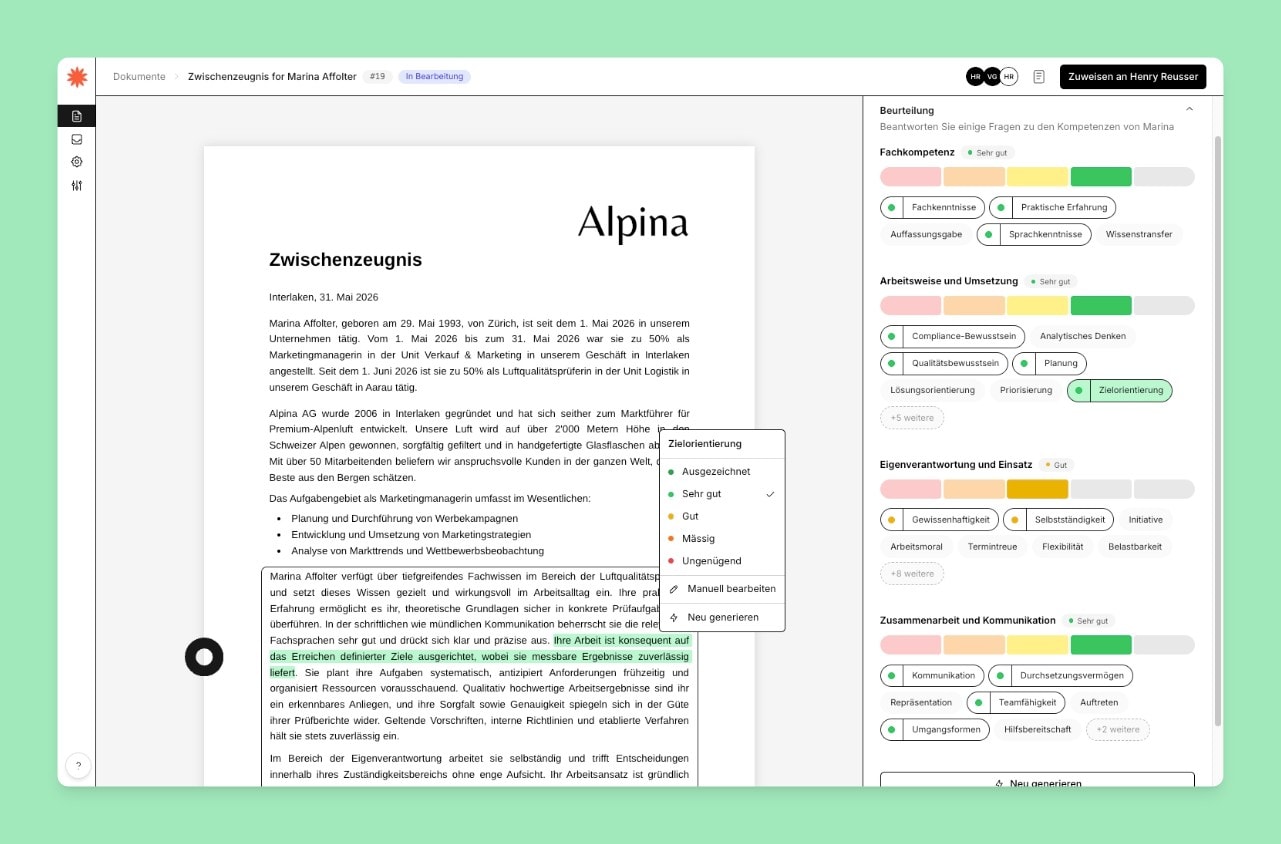
Doing the assessment
The assessment has four categories. For employees with a leadership role, there are five.
First rate the employee's categories from red to green. This rating affects how the evaluation is worded, more positive or more reserved, and it also reflects the number of recommended skills.
Skills are already selected in each area, but you can select and deselect them. The skills themselves can be set to a color individually, both through the selection on the right and through the preview on the written sentence itself.
Go through the categories and skills and select the assessment criteria that fit the employee. Based on the job title of the reference letter, a preselection has already been made here.
Click Generate assessment. In the preview on the left you now see the suggested text. Skills can be deselected or selected. Changes to individual skills are applied right away. If you want the whole text rewritten, click
Neu Generieren.Once the assessment is created, you can refine a skill directly in the text. To do this, double-click the text. Then you can either choose a focus point or go into detail on a specific task. You can also reword the sentence with your own instruction.
Finishing the reference letter
Once the assessment is done, you can finally select a reason for issuing and closing wishes for the future.
When you have finished editing the reference letter, you can send it to the next person in the workflow with the
Zuweisen anbutton.If you want changes to the existing text, or you want to leave a note for the HR person in charge, you can use the comment field.
Free text editing
In Skriba, generated texts can be edited and adjusted by hand. If the HR specialist in charge turns on this permission when assigning, supervisors can edit tasks, assessments and the closing section themselves.
If the editing function is not enabled, you can still enter the changes you want in the comment field. The HR specialist in charge then makes them in the reference letter.
FAQs
Why are no tasks shown for a role?
If no tasks are shown for a role, no tasks have been entered for that role yet. Please contact the HR person in charge to discuss what to do next. It could also be that the tasks are saved in only one language, but the reference letter is written in another language.